> For the complete documentation index, see [llms.txt](https://bluebricks.co/docs/llms.txt). Markdown versions of documentation pages are available by appending `.md` to page URLs; this page is available as [Markdown](https://bluebricks.co/docs/orchestration/environments/creating-environments.md).
# Creating Environments
Create environments from the Bluebricks app or CLI to deploy blueprints into collections
## Overview
An environment binds a blueprint to a collection and triggers the first run, provisioning your infrastructure. You can create environments directly from the Bluebricks app, the CLI, manifest files, or webhooks. This guide focuses on the Bluebricks app and CLI workflows.
{% hint style="info" icon="book" %}
For conceptual background on environments and how they work, see [Environments](/docs/orchestration/environments.md).
{% endhint %}
## Prerequisites
All methods require a **collection** with at least one connected cloud account. See [Creating Collections](/docs/orchestration/collections/create-an-environment.md). Additional prerequisites depend on how you create the environment and are listed in each section below.
## How to create an environment in the Bluebricks app
The Bluebricks app provides a guided wizard for creating environments.
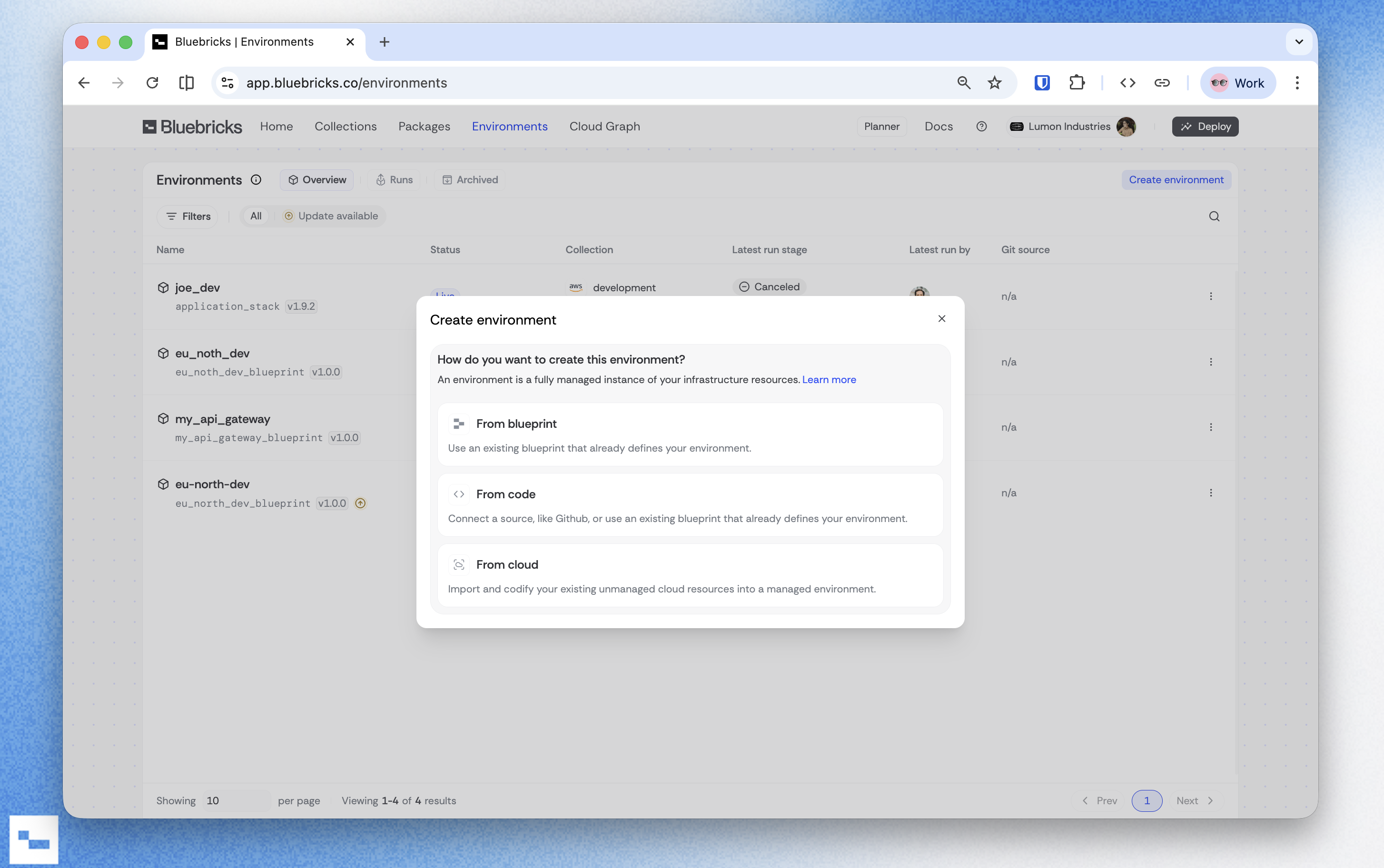
From the **Environments page**, click **create environment** to get started.
You choose one of three paths:
* **From blueprint**: deploy an existing published [blueprint](/docs/orchestration/packages/blueprints-overview.md) into a collection
* **From code**: connect a Git repository containing your IaC source code
* **From cloud**: import unmanaged cloud resources into a managed environment via the [cloud import agent](/docs/agent/codifying-infrastructure.md)
When to use "From blueprint"
Choose this when your team has already published a blueprint and you want to deploy it into a collection. This is the fastest path because the blueprint already defines your infrastructure code, packages, and relationships.
[Jump to the instructions](https://bluebricks.co/docs/orchestration/environments/creating-environments#how-to-create-from-blueprint)
When to use "From code"
Choose this when you have IaC source code in a Git repository (Terraform, OpenTofu, Helm, CloudFormation, or Bicep) and want to create a new blueprint from it. Bluebricks connects to your repo, wraps the code in a blueprint, and deploys it.
This is the standard path for writing infrastructure from scratch or bringing existing code under Bluebricks management. [Jump to the instructions](https://bluebricks.co/docs/orchestration/environments/creating-environments#how-to-create-from-code)
When to use "From cloud"
Choose this when you have existing cloud resources that were created outside of Bluebricks and want to bring them under management. The Cloud Import Agent scans the cloud account associated with your [collection](/docs/orchestration/collections.md), lets you select resources, and generates the IaC code for you.
Choose this path when you have infrastructure already running that you want to codify and manage on Bluebricks going forward. [Jump to the instructions](https://bluebricks.co/docs/orchestration/environments/creating-environments#how-to-create-from-cloud)
### How to create from blueprint
Choose **From blueprint** when your team has already published a blueprint and you want to deploy it into a collection.
**Prerequisites**: at least one published blueprint. See [Creating Blueprints](/docs/orchestration/packages/blueprints-overview/creating-blueprints.md).
{% hint style="info" %}
The **From blueprint** option is disabled if no blueprints exist yet. Publish a blueprint first, or use **From code** to create one from a Git repository.
{% endhint %}
{% stepper %}
{% step %}
**Select a collection**
Choose the target collection for the environment.
{% endstep %}
{% step %}
**Name the environment**
Enter a descriptive slug (e.g., `git_ops_prod`).
{% endstep %}
{% step %}
**Select a blueprint**
Choose the blueprint you want to deploy from the dropdown. Blueprints are filtered by the selected collection.
{% endstep %}
{% step %}
**Create the environment**
Click **Create** to create the environment and trigger the first run.
{% endstep %}
{% endstepper %}
### How to create from code
Choose **From code** when you have IaC source code in a Git repository and want to create a new blueprint from it.
**Prerequisites**: a public or private Git repository with IaC code.
{% stepper %}
{% step %}
**Select a collection**
Choose the target collection for the environment.
{% endstep %}
{% step %}
**Set source code**
Select the IaC technology (OpenTofu, Terraform, Helm, CloudFormation, or Bicep), then choose how to connect your repository:
{% tabs %}
{% tab title="From connected repo" %}
Select your Git organization and repository from your connected integrations, then set the branch and optionally a subdirectory path.
{% hint style="info" icon="github-alt" %}
This option requires the [GitHub integration](/docs/integrations/github.md). If no repositories are connected, you will see a prompt to configure repository access.
{% endhint %}
{% endtab %}
{% tab title="From remote URL" %}
Enter a Git remote URL manually (e.g., `https://github.com/org/repo`), then set the branch and optionally a subdirectory path. Use this for public repositories that don't require an integration.
{% endtab %}
{% endtabs %}
{% endstep %}
{% step %}
**Name the environment**
Enter a descriptive slug (e.g., `git_ops_prod`).
{% endstep %}
{% step %}
**Define a blueprint**
Every environment runs a blueprint, so Bluebricks creates one from your source code as part of this flow. Give the blueprint a name and optional description. Once created, other team members can reuse this blueprint to deploy the same infrastructure into other collections without reconnecting the repository. See [Blueprints](/docs/orchestration/packages/blueprints-overview.md) for more on how blueprints work.
{% endstep %}
{% step %}
**Create the environment**
Click **Create** to generate the blueprint and environment. Bluebricks triggers the first run automatically.
{% endstep %}
{% endstepper %}
### How to create from cloud
Choose **From cloud** to import and codify existing unmanaged cloud resources into a managed environment.
{% stepper %}
{% step %}
**Select a collection**
Choose the collection you want to import resources from.
{% endstep %}
{% step %}
**Go to the Cloud Graph**
Click **Go to graph** to open the resource explorer, where you can select cloud resources to import and codify. See [Codifying Infrastructure](/docs/agent/codifying-infrastructure.md) for more details.
{% endstep %}
{% endstepper %}
## How to create an environment via the CLI
Use the `bricks install` command to create an environment from the terminal.
**Prerequisites**: Bricks CLI installed and authenticated. See [Bricks CLI](/docs/bricks-cli/bricks-cli.md).
### Basic example
```bash
bricks install @bluebricks/postgres --collection=production --props-file=path/to/props.json
```
### Plan-only (preview changes without applying)
```bash
bricks install @bluebricks/postgres --collection=production --props-file=path/to/props.json --plan-only
```
### Key flags
| Flag | Description |
| ------------------ | ------------------------------------------------------------------------- |
| `-c, --collection` | Collection slug as the deployment target |
| `--env-slug` | Environment slug (target an existing environment for redeployment) |
| `--set-slug` | Set a custom environment slug |
| `-p, --props` | JSON string containing blueprint properties |
| `--props-file` | Path to a JSON file containing blueprint properties |
| `-f, --file` | Path to a YAML manifest file (`bricks/v1` schema) for non-interactive use |
| `--plan-only` | Create a plan without applying |
| `-y, --yes` | Skip confirmation and deploy directly |
For the full command reference, see [`bricks install`](/docs/bricks-cli/cli-reference/bricks_install.md).
## Other ways to create environments
* **Manifest file (CI/CD)**: define environments declaratively using a manifest file. See [Environment Manifest File Format](/docs/orchestration/runs/deployment-manifest-file-format.md) and [Managing Configuration on Git](/docs/orchestration/bluebricks-git-repository-guide/managing-configuration-on-git.md).
* **Webhooks**: trigger environment creation from external systems. See [Webhooks](/docs/orchestration/webhooks.md).
## What happens after creation
When you create an environment, Bluebricks automatically triggers the first run in **plan** phase. The unified plan shows all proposed infrastructure changes across every package in the blueprint.
Review the plan, then **approve** to apply the changes and provision your infrastructure. For full details on the run lifecycle, see [Runs](/docs/orchestration/runs.md).