> For the complete documentation index, see [llms.txt](https://bluebricks.co/docs/llms.txt). Markdown versions of documentation pages are available by appending `.md` to page URLs; this page is available as [Markdown](https://bluebricks.co/docs/getting-started/connect-your-cloud/how-to-connect-gcp.md).
# Connecting to GCP
Step-by-step guide to connect a Google Cloud project to a Bluebricks collection, grant discovery permissions, and start cloud resource ingestion
Connect a Google Cloud project to a Bluebricks [collection](/docs/orchestration/collections.md) so Bluebricks can inventory cloud resources into the [context layer](/docs/getting-started/building-blocks.md#the-context-layer). After you grant the required IAM roles to the Bluebricks service account, discovery ingests your project resources and powers the [agent](/docs/agent/agents-overview.md).
Unlike AWS and Azure, GCP connections do **not** start discovery automatically. You must grant IAM roles on your project first, then trigger ingestion.
## Prerequisites
1. A valid [Google Cloud project ID](https://cloud.google.com/resource-manager/docs/creating-managing-projects)
2. Permission to grant IAM roles on that project (`roles/resourcemanager.projectIamAdmin` or equivalent)
3. A [Bluebricks collection](/docs/orchestration/collections/create-an-environment.md)
{% hint style="info" %}
Bluebricks uses **service account impersonation** to connect to GCP: no static service account keys are required. Bluebricks creates a dedicated service account per project and authenticates through Google's identity federation.
{% endhint %}
## How to connect and enable discovery
{% stepper %}
{% step %}
### Connect GCP in Bluebricks
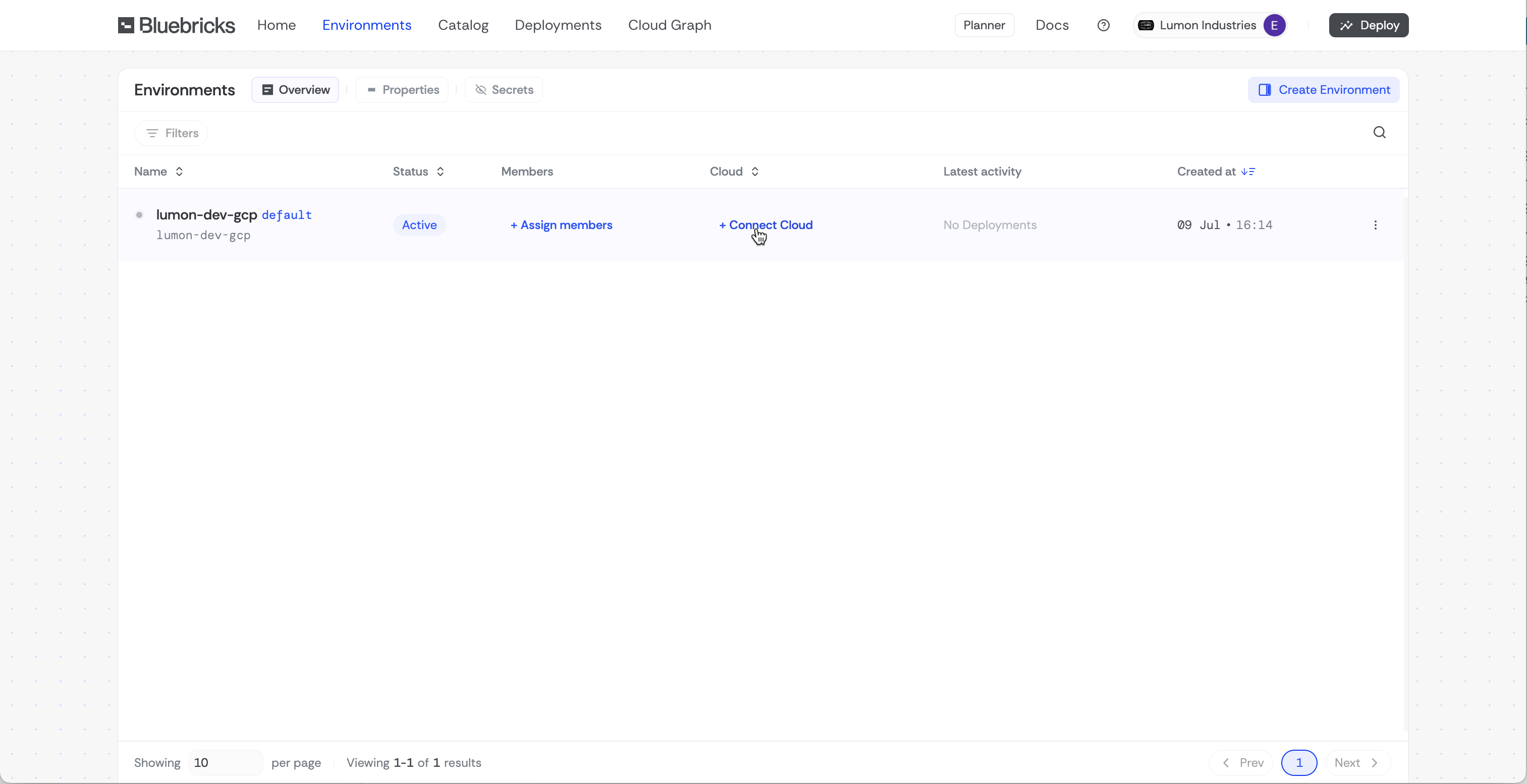
1. Click **Connect Cloud** on the collection you want to link to GCP
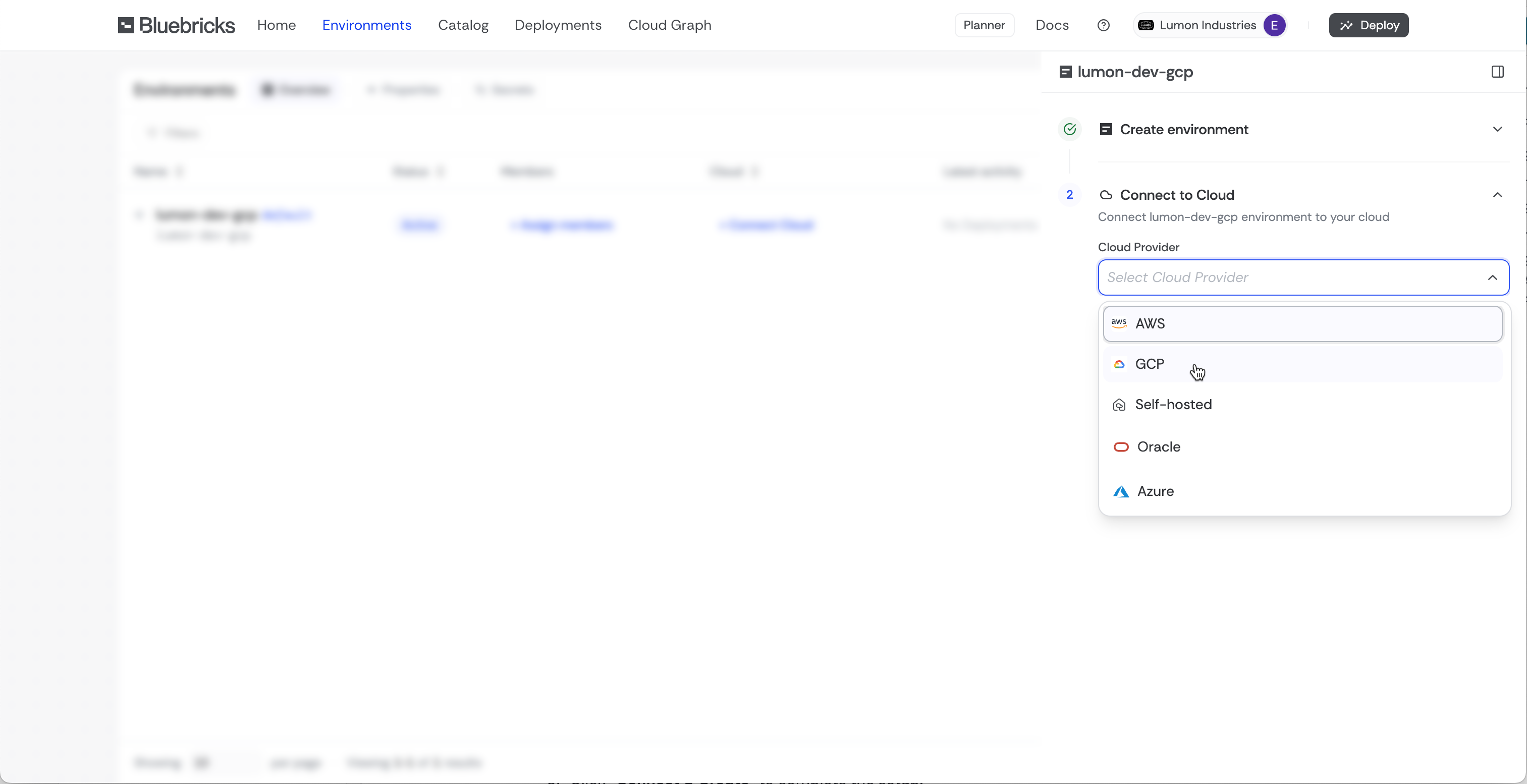
2. Select **GCP** as the **Cloud Provider**
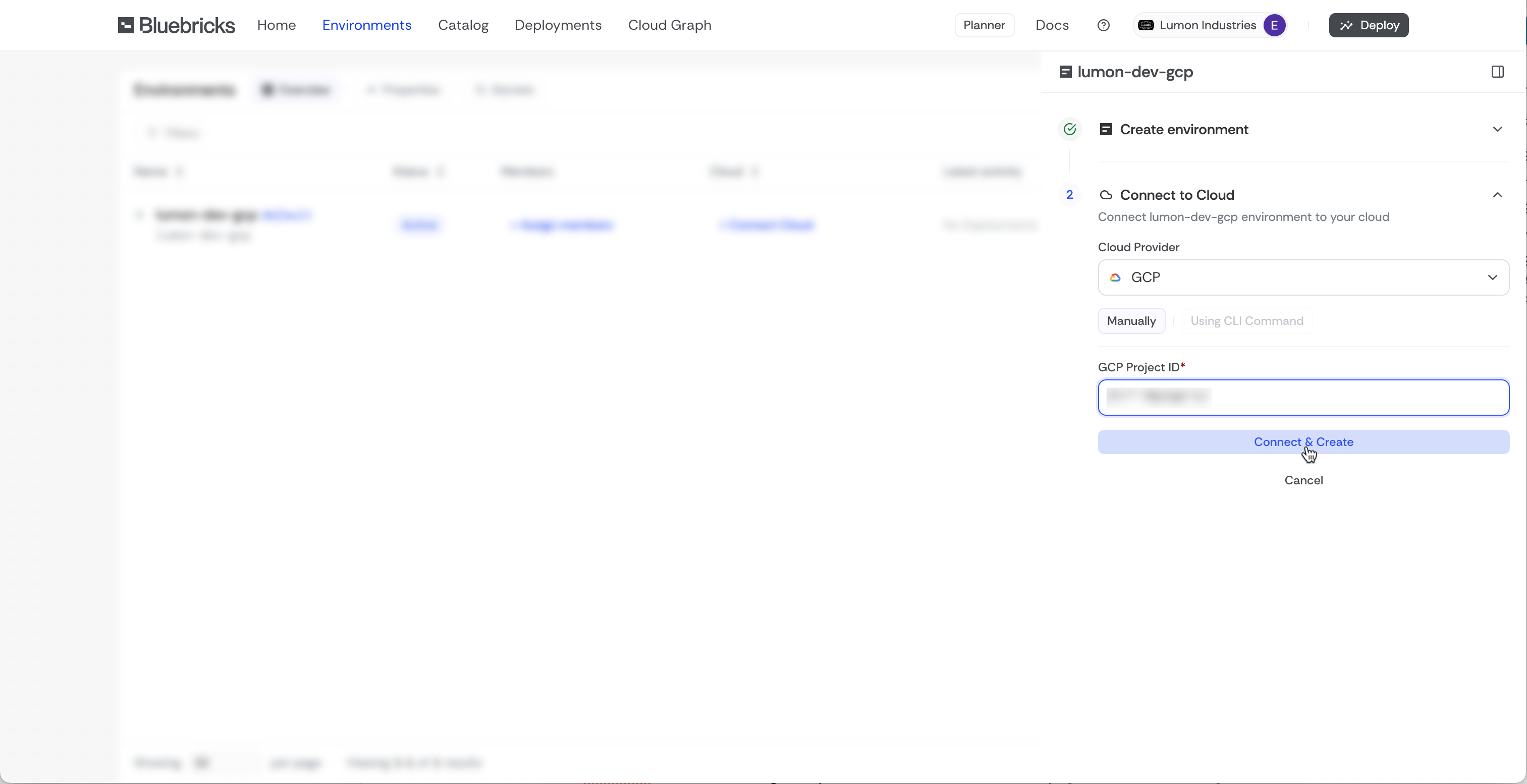
3. Choose an existing **Project ID** or click **New Project**
4. If creating a **New Project**, enter the **Google Cloud Project ID**
5. Click **Connect & Create** to complete the setup
{% endstep %}
{% step %}
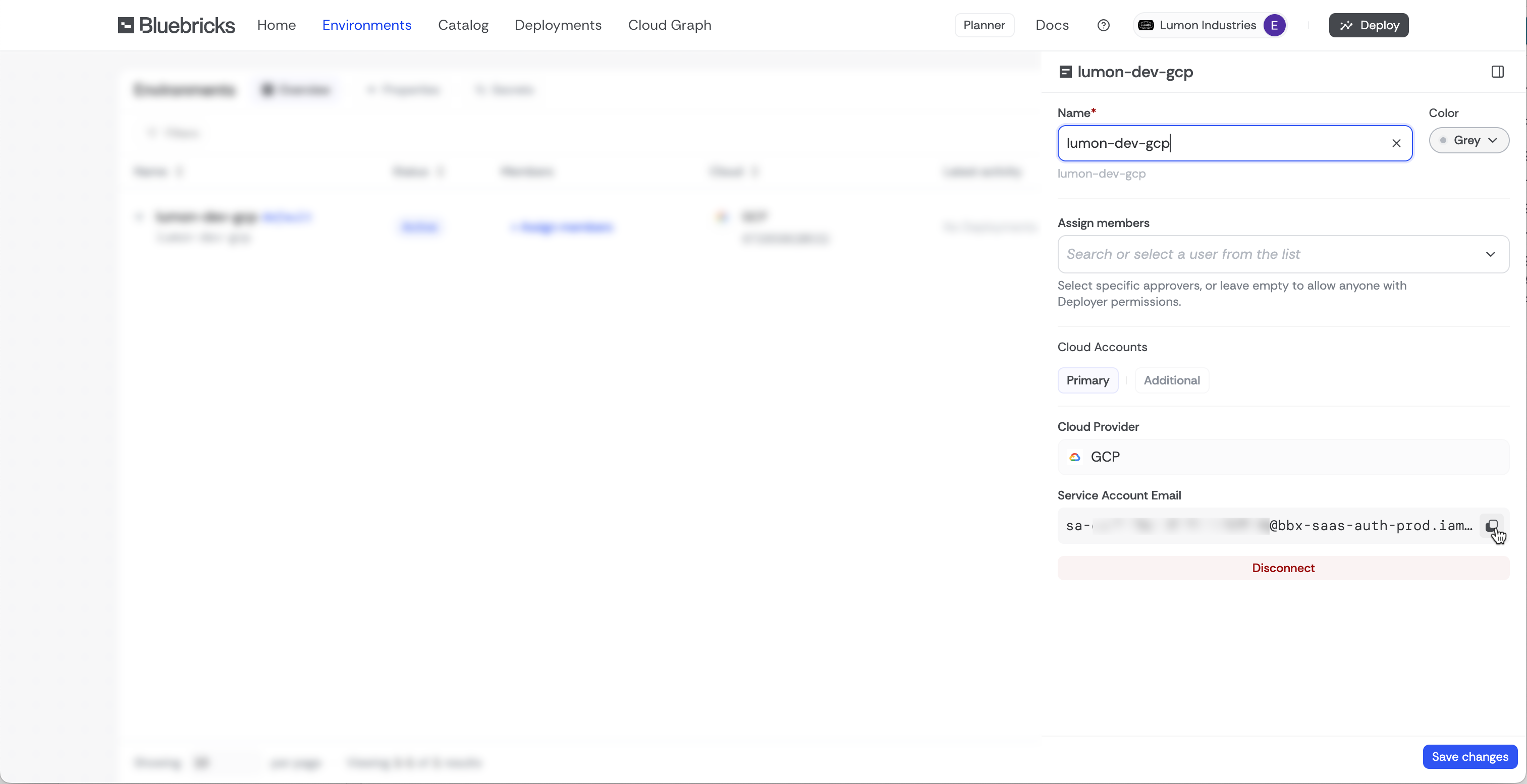
### Copy the service account email
Bluebricks creates one service account per connected project. You grant IAM roles to this account on **your** project.
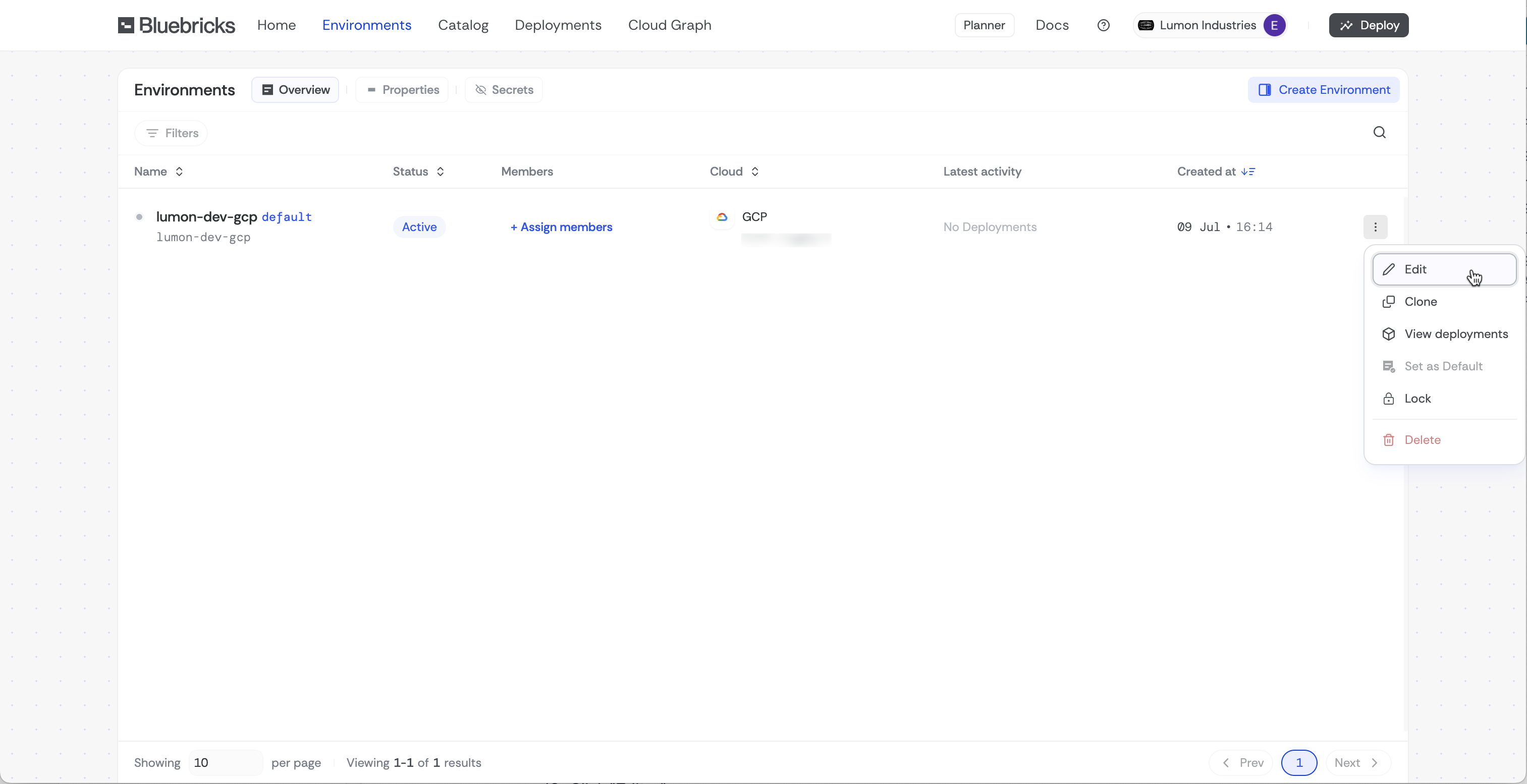
1. Choose **Edit** on the collection options
2. Copy the **Bluebricks Service Account** email (also available in the Cloud Accounts API response as `service_account_email`)
{% hint style="warning" %}
Use a **unique service account email** per project. Do not reuse the same principal across unrelated projects.
{% endhint %}
{% endstep %}
{% step %}
### Grant discovery permissions
Discovery permissions are **required** for cloud resource ingestion, the context layer, and the agent. Without these roles, ingestion fails with IAM permission errors.
Grant the following roles to the Bluebricks service account on your Google Cloud project:
| Role | IAM role ID | Purpose |
| ---------------------- | ---------------------------- | -------------------------------------------------------------------------------------------------------------- |
| **Cloud Asset Viewer** | `roles/cloudasset.viewer` | Query [Cloud Asset Inventory](https://cloud.google.com/asset-inventory/docs) (required for resource discovery) |
| **Security Reviewer** | `roles/iam.securityReviewer` | Read IAM policies and security configurations |
| **Viewer** | `roles/viewer` | General read-only access to project resources |
{% tabs %}
{% tab title="Google Cloud console" %}
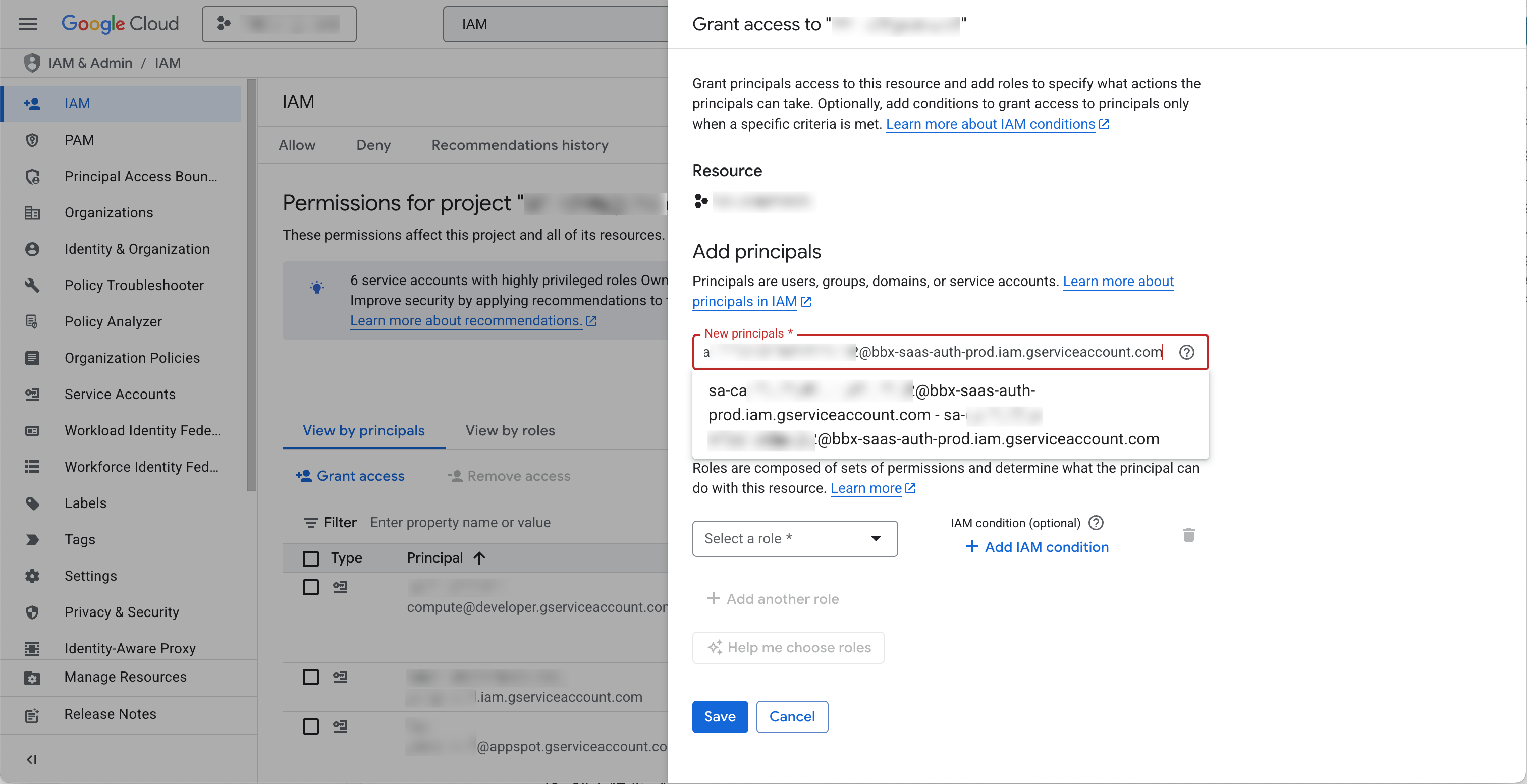
1. Open the [Google Cloud console](https://console.cloud.google.com/) and select your project
2. Search for **IAM** and open **IAM & Admin**
3. Click **Grant access**
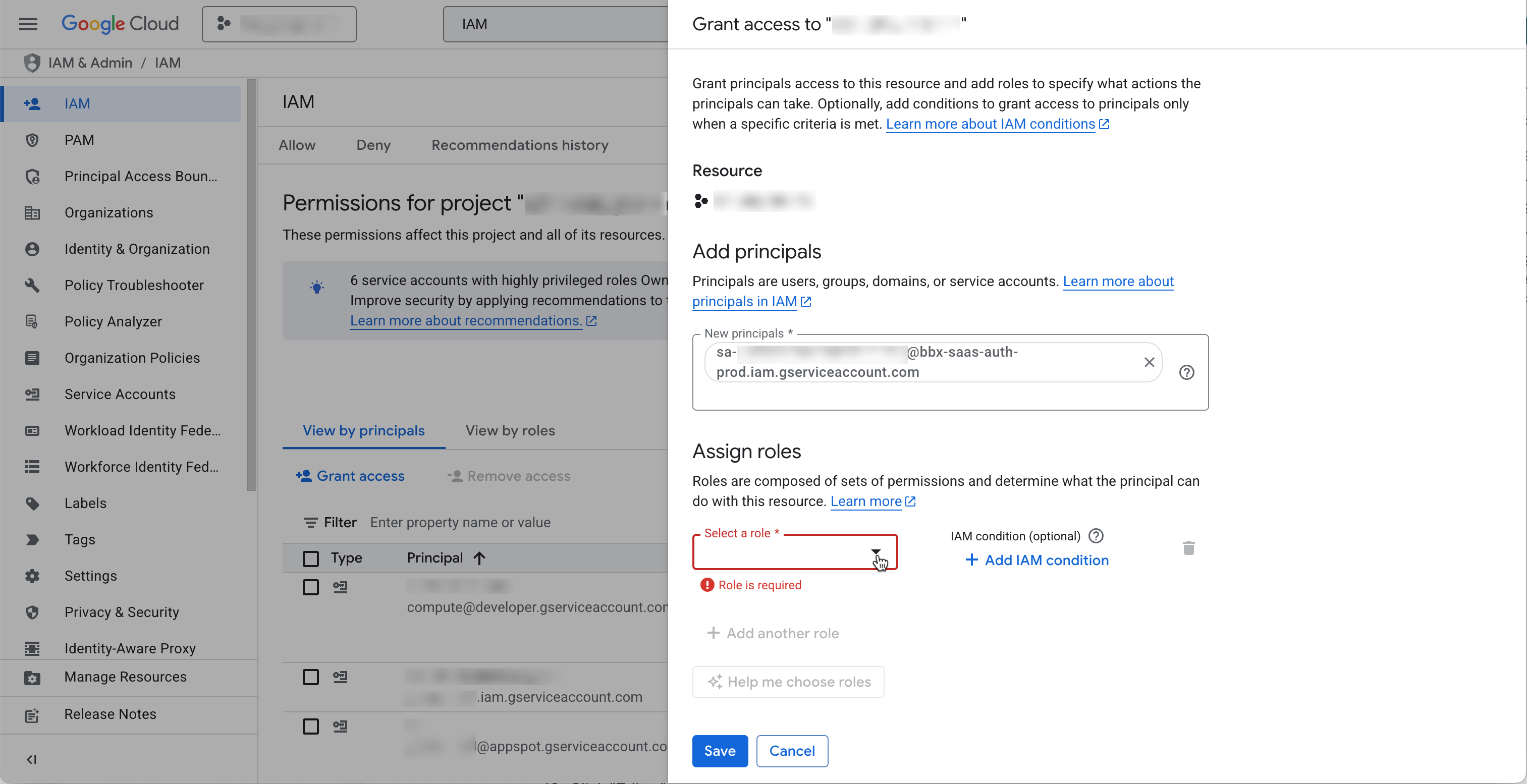
4. Paste the Bluebricks service account email in **New principals**
5. Assign each role from the table above (Cloud Asset Viewer, Security Reviewer, Viewer)
6. Click **Save**
{% endtab %}
{% tab title="gcloud CLI" %}
Set `PROJECT_ID` to the Google Cloud project you connected in Bluebricks. Set `SA_EMAIL` to the Bluebricks service account email from the previous step (format: `name@PROJECT_ID.iam.gserviceaccount.com`).
```bash
PROJECT_ID="my-gcp-project-id"
SA_EMAIL="bluebricks-sa@my-gcp-project-id.iam.gserviceaccount.com"
for ROLE in \
roles/cloudasset.viewer \
roles/iam.securityReviewer \
roles/viewer; do
gcloud projects add-iam-policy-binding "$PROJECT_ID" \
--member="serviceAccount:${SA_EMAIL}" \
--role="$ROLE"
done
```
Prefer separate commands? Keep the same `PROJECT_ID` and `SA_EMAIL` lines above, then run each binding individually with `"$PROJECT_ID"` and `"serviceAccount:${SA_EMAIL}"`.
{% endtab %}
{% endtabs %}
{% endstep %}
{% step %}
### Grant GKE permissions
If this project runs [GKE](https://cloud.google.com/kubernetes-engine) workloads, grant one more role so Bluebricks can add **live cluster details** to your [context layer](/docs/getting-started/building-blocks.md#the-context-layer). The agent can then answer questions about what is running inside your clusters, not just that the clusters exist.
Discovery alone lists GKE clusters as cloud resources. This step indexes **in-cluster objects** such as Pods, Deployments, Jobs, and Ingresses. That gives the [agent](/docs/agent/agents-overview.md) a fuller picture of your environment.
| Role | IAM role ID | Purpose |
| ---------------------------- | ------------------------ | --------------------------------------------------- |
| **Kubernetes Engine Viewer** | `roles/container.viewer` | Read GKE clusters and connect to the Kubernetes API |
{% tabs %}
{% tab title="Google Cloud console" %}
1. Open **IAM & Admin** > **IAM** for your project
2. Find the Bluebricks service account, or use **Grant access** if it is not listed yet
3. Add the **Kubernetes Engine Viewer** role to the same principal
4. Click **Save**
{% endtab %}
{% tab title="gcloud CLI" %}
If your shell session is still open from the **Grant discovery permissions** step, `PROJECT_ID` and `SA_EMAIL` are already set. Otherwise, edit and run the full block below:
```bash
# Skip these two lines if PROJECT_ID and SA_EMAIL are already set
PROJECT_ID="my-gcp-project-id"
SA_EMAIL="bluebricks-sa@my-gcp-project-id.iam.gserviceaccount.com"
gcloud projects add-iam-policy-binding "$PROJECT_ID" \
--member="serviceAccount:${SA_EMAIL}" \
--role="roles/container.viewer"
```
{% endtab %}
{% endtabs %}
Grant this role before you trigger discovery in the next steps so the first scan includes GKE workload data. No GKE in this project? Continue to the next step.
For more information, see [Kubernetes Integration](/docs/getting-started/connect-your-cloud/kubernetes-integration.md).
{% endstep %}
{% step %}
### Trigger discovery and verify ingestion
GCP connections do not start discovery automatically. After IAM roles propagate (usually within a few minutes), trigger ingestion:
1. Ask the [agent](/docs/agent/agents-overview.md) to refresh cloud resources for your collection, or trigger ingestion through the Cloud Accounts API
2. Wait for the ingestion job to complete (typically 2 to 5 minutes)
3. Verify by asking the agent a project-scoped question, for example: "List compute instances in my GCP project" or "What GKE clusters are running?"
{% hint style="warning" %}
If ingestion fails with a Cloud Asset Inventory or IAM permission error, confirm all three discovery roles from the **Grant discovery permissions** step are granted on the correct project. Failed jobs do not retry automatically after exhausting retries.
{% endhint %}
{% endstep %}
{% step %}
### Grant orchestration permissions (optional)
If you plan to deploy [blueprints](/docs/orchestration/packages/blueprints-overview.md) through Bluebricks, also grant the **Editor** role (`roles/editor`) to the same service account. This allows Bluebricks to create, modify, and destroy infrastructure in your project.
GCP uses the same service account for both discovery and orchestration. See [Connect your Cloud](/docs/getting-started/connect-your-cloud.md#permissions) for how permission types work across providers.
{% hint style="info" %}
Discovery-only setups do not need the Editor role. Complete the discovery and ingestion steps above without granting orchestration permissions.
{% endhint %}
{% tabs %}
{% tab title="Google Cloud console" %}
1. Open **IAM & Admin** > **IAM** for your project
2. Find the Bluebricks service account
3. Add the **Editor** role to the same principal
4. Click **Save**
{% endtab %}
{% tab title="gcloud CLI" %}
If your shell session is still open from the **Grant discovery permissions** step, `PROJECT_ID` and `SA_EMAIL` are already set. Otherwise, edit and run the full block below:
```bash
# Skip these two lines if PROJECT_ID and SA_EMAIL are already set
PROJECT_ID="my-gcp-project-id"
SA_EMAIL="bluebricks-sa@my-gcp-project-id.iam.gserviceaccount.com"
gcloud projects add-iam-policy-binding "$PROJECT_ID" \
--member="serviceAccount:${SA_EMAIL}" \
--role="roles/editor"
```
{% endtab %}
{% endtabs %}
{% endstep %}
{% endstepper %}
## How to connect via the API
Use the [Cloud Accounts API](https://bluebricks.co/docs/api/reference/cloud-accounts) to create a cloud account. Pass the Google Cloud project ID as `accountId`. The response includes the Bluebricks service account email in `cloud_config`.
After connecting, grant the IAM roles and trigger discovery using the steps above.
## Troubleshooting
For ingestion failures, missing resources, and IAM permission errors, see [Cloud Connection Troubleshooting](https://bluebricks.co/docs/help/troubleshooting/cloud-connections) in the Help Center.
## Next steps
* [Connect your Cloud](/docs/getting-started/connect-your-cloud.md): overview of all cloud connection types and permission models
* [Kubernetes Integration](/docs/getting-started/connect-your-cloud/kubernetes-integration.md): live GKE workload indexing through discovery
* [Agent overview](/docs/agent/agents-overview.md): query your ingested cloud resources
* [CLI Reference: bricks clouds](/docs/bricks-cli/cli-reference/bricks_clouds.md)