> For the complete documentation index, see [llms.txt](https://bluebricks.co/docs/llms.txt). Markdown versions of documentation pages are available by appending `.md` to page URLs; this page is available as [Markdown](https://bluebricks.co/docs/agent/integration-threads.md).

# Integration threads

When an external system sends an alert to Bluebricks, the platform can open an **integration thread**: a shared agent conversation that everyone in your organization can see and work in together.

Integration threads complement the conversations you start yourself in the app. They are built for incident response: alerts land in Bluebricks, the agent begins an investigation, and your team continues in the same thread without copying context into Slack or email.

## How integration threads differ from personal threads

|                            | Personal thread                                       | Integration thread                                |
| -------------------------- | ----------------------------------------------------- | ------------------------------------------------- |
| **Started by**             | You (in the app or through automation you run)        | An alert or webhook from a connected system       |
| **Who can see it**         | You, unless you share a link with someone in your org | Everyone in your organization who uses the agent  |
| **Who can reply**          | You; teammates with a shared link can **view only**   | Any teammate in your org who can use the agent    |
| **Updates in the sidebar** | Shown to you                                          | Shown to the whole organization                   |
| **Rename or archive**      | You                                                   | Managed by Bluebricks (not tied to a single user) |

```mermaid
flowchart LR
  Alert[External alert] --> Webhook[Webhook to Bluebricks]
  Webhook --> Thread[Integration thread]
  Thread --> Agent[Agent investigation]
  Agent --> Team[Team joins in app]
```

## Alert and webhook integrations

Connected monitoring and observability tools can send alerts to Bluebricks over HTTPS. Each accepted alert opens a new integration thread and starts an agent investigation. The exact webhook URL and setup steps depend on the integration; see the [API reference](https://bluebricks.co/docs/api) under **Inbound webhooks** for what is available in your environment.

Typical flow:

1. Your monitoring tool sends the alert payload to Bluebricks.
2. Bluebricks opens a new integration thread and starts an investigation from that data.
3. The agent works in the background and posts its findings into the thread.
4. Your team opens the thread in Bluebricks, reviews the results, and asks follow-up questions.

### Before you begin

1. The [agent](/docs/agent/agents-overview.md) is available for your organization.
2. The **source system is connected** in Bluebricks (where required) so the agent can use that context during the investigation. Configure integrations in the app or through the [API reference](https://bluebricks.co/docs/api).
3. You have a [long-lived API token](/docs/bricks-cli/authentication/authenticate-using-long-lived-tokens.md) for the inbound webhook, with permission to open agent threads.

{% hint style="warning" %}
**Security**\
Inbound webhook URLs are reachable from the internet, but only requests with a valid [long-lived API token](/docs/bricks-cli/authentication/authenticate-using-long-lived-tokens.md) are accepted. Create a dedicated token per integration, rotate it like other automation secrets, and grant only the permissions the webhook needs.
{% endhint %}

### What you see in the app

After Bluebricks accepts an alert:

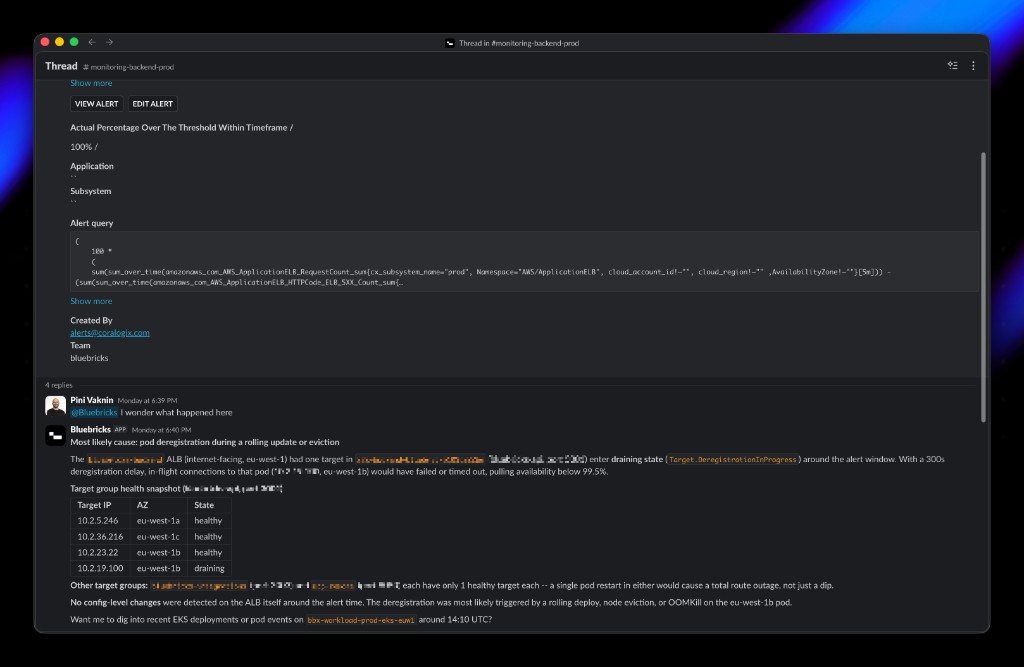
* A new thread appears for your organization, usually with a default title from the integration (the title may update after the agent finishes its first pass).
* The conversation opens with the alert details and the agent’s investigation.
* Teammates see progress in the agent sidebar and on the threads list.

<figure><img src="/files/yq9mCbGIb36TWTuswhu4" alt="Agent app showing Public threads in the sidebar and a Coralogix integration thread with an IAM policy investigation"><figcaption><p>Integration threads appear under <strong>Public</strong> in the agent sidebar, labeled by source (for example Coralogix).</p></figcaption></figure>

If an investigation is already running on that thread, Bluebricks still saves the thread and records what happened so your team can continue or retry from the app.

### Example: Coralogix alerts

**Coralogix** is one supported source today. Setup has two parts: connecting Coralogix so the agent can look up live data during an investigation, and sending alerts into Bluebricks so each incident opens a thread.

#### Connect Coralogix for richer investigations (recommended)

The alert webhook only includes what Coralogix puts in the notification. For deeper analysis, connect **Coralogix’s MCP server** in Bluebricks. During an integration thread, the agent can then query Coralogix (for example logs, traces, and related context) instead of relying on the alert JSON alone.

Configure this in the app under integrations, or through the Coralogix MCP endpoints in the [API reference](https://bluebricks.co/docs/api) (`/api/v1/integrations/mcp/coralogix`). You need your Coralogix MCP server URL and auth token from Coralogix.

The webhook below can still open threads if you skip this step, but investigations work best when both the webhook and the Coralogix connection are in place.

#### Route alerts into Bluebricks

In Coralogix, add an outbound webhook that runs when an alert fires.

**Webhook URL**

```
POST https://api.bluebricks.co/api/v1/webhooks/coralogix/alerts
```

**Authentication**

Send your [long-lived API token](/docs/bricks-cli/authentication/authenticate-using-long-lived-tokens.md) as a Bearer token:

```bash
curl -X POST 'https://api.bluebricks.co/api/v1/webhooks/coralogix/alerts' \
  -H 'Authorization: Bearer {{API-KEY}}' \
  -H 'Content-Type: application/json' \
  -d '{
    "alert_id": "cx-123",
    "alert_name": "CPU high",
    "severity": "critical",
    "timestamp": "2026-05-04T12:00:00Z",
    "alert_message": "CPU over 95%",
    "application": "api",
    "subsystem": "fastify"
  }'
```

**Alert payload**

Use any JSON shape your Coralogix template provides. Bluebricks keeps the full payload on the thread and includes it in the first investigation message. You do not need to map fields to a fixed schema.

**Response**

A successful call returns **202 Accepted** with a thread identifier you can open in the app:

```json
{
  "thread_id": "550e8400-e29b-41d4-a716-446655440000",
  "message": "Investigation opened successfully"
}
```

New alert sources will follow the same pattern: connect the tool in Bluebricks, register its webhook URL, and open a shared thread for your organization when an event arrives.

## Working together as a team

Anyone in your organization who can use the agent can:

* Find integration threads in the agent sidebar and threads list, alongside their own personal threads.
* Read the full history, including the original alert in the opening messages.
* Ask the agent follow-up questions and drive the investigation forward.

That differs from a **personal** thread you did not start: teammates who open your link can read the conversation but cannot send messages or run the agent.

{% hint style="info" %}
**Collection access**\
If a thread is tied to specific collections, teammates still need access to those collections to open it. Alert-driven threads are not limited to a collection by default.
{% endhint %}

You can **copy a link** to the thread, **favorite** it for quick access, and use **unread** indicators on your own account even though the thread is visible to the whole org.

## Automating with the API

Scripts and CI jobs can list and open threads through the Agents API. Filter by thread type (personal vs integration) and by connected system when you need a subset of incidents.

See the [API reference](https://bluebricks.co/docs/api) for Agents endpoints and inbound webhooks (including Coralogix alerts).

Additional **alert** sources may be added over time using the integration-thread model described above.

## Slack

The [Slack integration](/docs/integrations/slack.md) can run the agent when someone @mentions Bluebricks or sends a direct message. Each Slack conversation maps to one **personal** agent thread in Bluebricks (owned by the teammate who started it), not an org-wide integration thread.

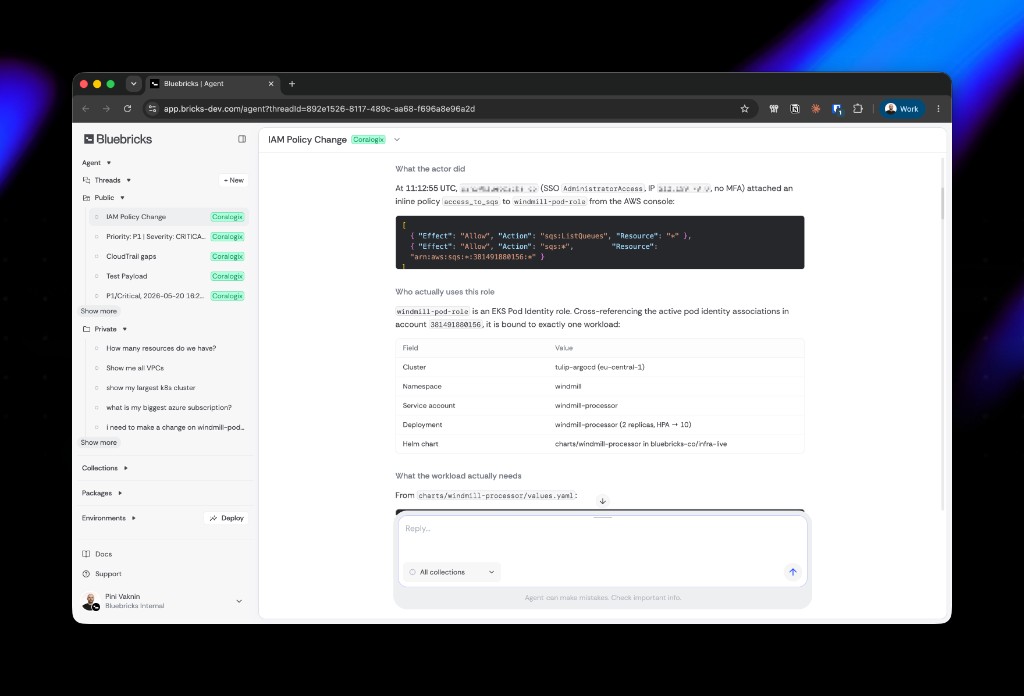
<figure><img src="/files/LLZujJ3io2p1bB13nsDj" alt="Slack channel with a Coralogix alert and a Bluebricks app reply analyzing load balancer target health"><figcaption><p>When alerts post to a Slack channel, mention @Bluebricks in that thread to investigate with prior Slack messages as context.</p></figcaption></figure>

**Slack thread context.** When you message the agent inside a Slack thread (a reply, not a new top-level message), Bluebricks pulls recent messages from that Slack thread and sends them with your prompt. The agent sees who said what in the conversation leading up to your request, not only the latest line. Bluebricks skips its own prior replies in that history so the context stays focused on the discussion.

**Continuity.** Follow-ups in the same Slack thread reuse the same agent thread in Bluebricks, so later turns also include earlier agent and user messages from that chat.

In the app, teammates who are not the owner can open that thread by link but are **view only**. Collaboration happens in Slack; the Bluebricks thread backs that chat. This is different from alert-driven integration threads, which are shared with everyone in your organization by default.

## Related documentation

* [Agent overview](/docs/agent/agents-overview.md)
* [Agent governance](/docs/agent/governance.md)
* [Reading a Bluebricks PR](/docs/agent/reading-a-bluebricks-pr.md)
* [Bluebricks MCP](/docs/integrations/bricks-mcp.md) — the Bluebricks MCP server for infrastructure workflows (separate from vendor MCP connections such as Coralogix)
* [Long-lived API tokens](/docs/bricks-cli/authentication/authenticate-using-long-lived-tokens.md) — tokens for webhooks and automation


---

# Agent Instructions
This documentation is published with GitBook. GitBook is the documentation platform designed so that both humans and AI agents can read, navigate, and reason over technical content effectively. Learn more at gitbook.com.

## Querying This Documentation
If you need additional information that is not directly available in this page, you can query the documentation dynamically by asking a question.

Perform an HTTP GET request on the current page URL with the `ask` query parameter:

```
GET https://bluebricks.co/docs/agent/integration-threads.md?ask=<question>
```

The question should be specific, self-contained, and written in natural language.
The response will contain a direct answer to the question and relevant excerpts and sources from the documentation.

Use this mechanism when the answer is not explicitly present in the current page, you need clarification or additional context, or you want to retrieve related documentation sections.